This is a tutorial which is intended for new people , who are getting into photoshop or even ones which did not find this effect till today or did not look for the correct naming or an idea of what I could be.
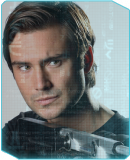
Before and After: (Those pictures are taken, so I don't have any credit for this)
This is normal picture is the top one
The bottom one is the how it looks like with the effect.
Before getting into the main tutorial I have to give credit to where credit is due:
(Spatial-My good friend, for providing the Pictures for this material)
Step one
After you have your raw picture.. create a new project (File>New or the quick command Ctrl+N)
Make it 10Pixels by 10Pixels and make sure to mark your background as transparent. After that you will have to select an area which will be made black, but since your project is too small you have to zoom in, either by having (Ctrl and +, or got to the zoom bar which is depending on your photoshop on the top or bottom of your screen. For me the best zoom option is 1000% since it brings it enough to have a decent view.
After that you need to select your Rectangular Marquee Tool and select 5 tiles of your composition, then grab your Bucket tool and fill the selection.
This is how your file should look by now.
Step Two
Now after you got the basic part done, you now have to say this pattern so you can use it later on any picture and in order to do that you need to do this:
Go to the Image>Define pattern.
From that you save it with any name
From this you have saved the main pattern which you will use.
Step three:
What you want to do now is to come back to your raw image and create a new layer. On that Layer, press Shift+ F5 and it will bring the Fill panel. When you are there you want to select Pattern and select the pattern you just made, but keep in mind that you need to have selected the new layer.
From here the effect is done, but since we use black lines, it will be rought looking series of lines. So in order to get that for a more pleasing look , you have to press on the empty layer, (Right Click>Blending Options) and at the first panel you see, there will be Opacity which you can drag and make the lines look smoother.
Feel free to tell me if you want me to make anymore tutorials for new and simple effects in Photoshop and fell free to leave any feedback.
Have a nice day
P.S you if need and will i could do a research into how this is made in Gimp
(08-29-2014, 03:16 PM)Dr.Perseus.Friend Wrote: Thanks Wulverine...Sarcasm...I's easy to come here with taken info , but not bring something you worked yoursefl on!

![[Image: sl-before-after-tm.jpg]](http://digital-photography-school.com/wp-content/uploads/2009/03/sl-before-after-tm.jpg)
![[Image: 7OJ283Z.jpg]](http://i.imgur.com/7OJ283Z.jpg)
![[Image: 2pJSX36.jpg]](http://i.imgur.com/2pJSX36.jpg)
![[Image: 2aBfo4W.jpg]](http://i.imgur.com/2aBfo4W.jpg)
![[Image: ihSEyXA.jpg]](http://i.imgur.com/ihSEyXA.jpg)

![[Image: zBEqQfl.jpg?1]](https://i.imgur.com/zBEqQfl.jpg?1)

 )
)
![[Image: UcVFiya.png?2]](http://i.imgur.com/UcVFiya.png?2)